
English
Expense Claims
The Expenses tab offers two ways to claim money back: Expenses (a purchase with a receipt) and Mileage (travel distance). Categories, payment types, and mileage rates are all configured in Business Central — see BC: Expenses setup.
Recording an expense
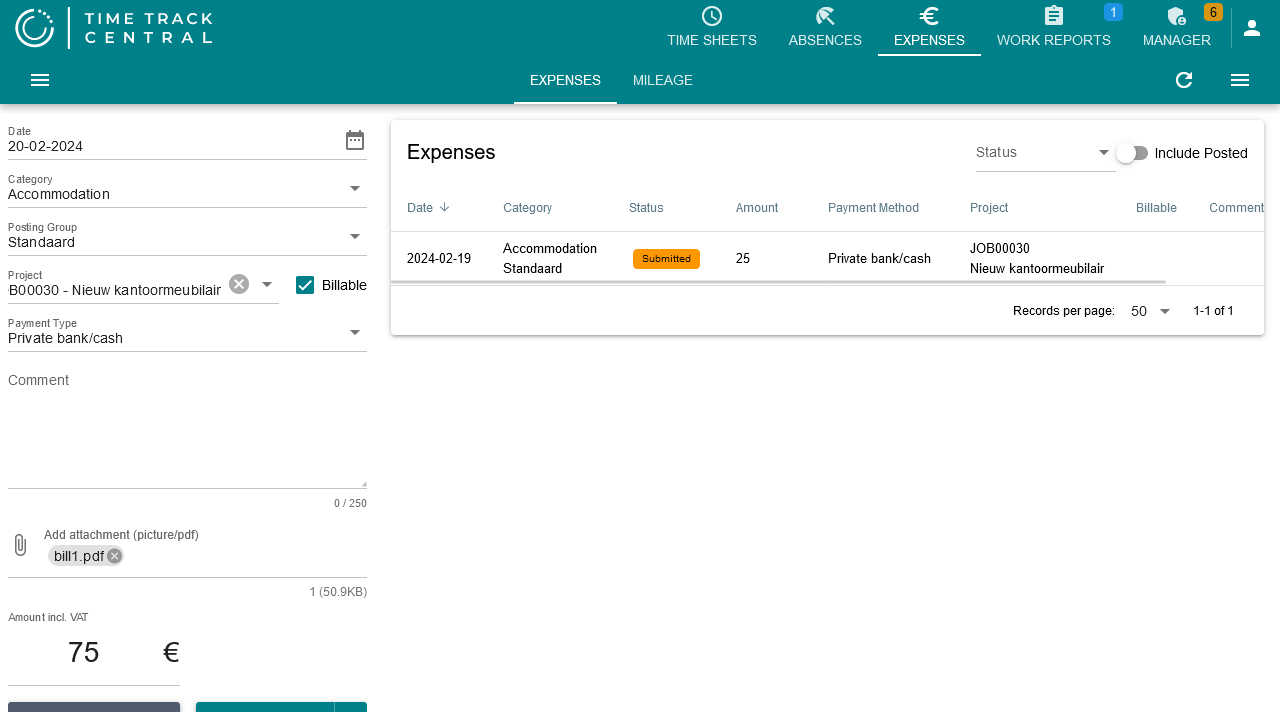
On the Expenses sub-tab, the entry panel has:
- Date of the expense.
- Category — determines the account it posts to, and can force an attachment or a project to be selected (see below). See BC: Expense Categories.
- Posting — a sub-choice tied to the selected category, e.g. which VAT rate or currency applies.
- Project and a Billable checkbox — leave Billable off for hours/costs you don't want to charge to a customer; if it's on, a project is required.
- Payment Method — how you paid (cash, personal card, company card, ...). See BC: Payment Types.
- Comment (optional, up to 250 characters).
- Attach receipts (image/pdf) — up to 10 files. Required if the category or payment method demands it.
- Amount incl. VAT — the excluding-VAT amount is calculated automatically once a posting with a VAT rate is chosen.
Press Create to save without submitting, or click the arrow next to it and choose Create & submit to send it for approval right away. Both are disabled until the mandatory fields (including a required attachment or project) are filled in.
Recording mileage
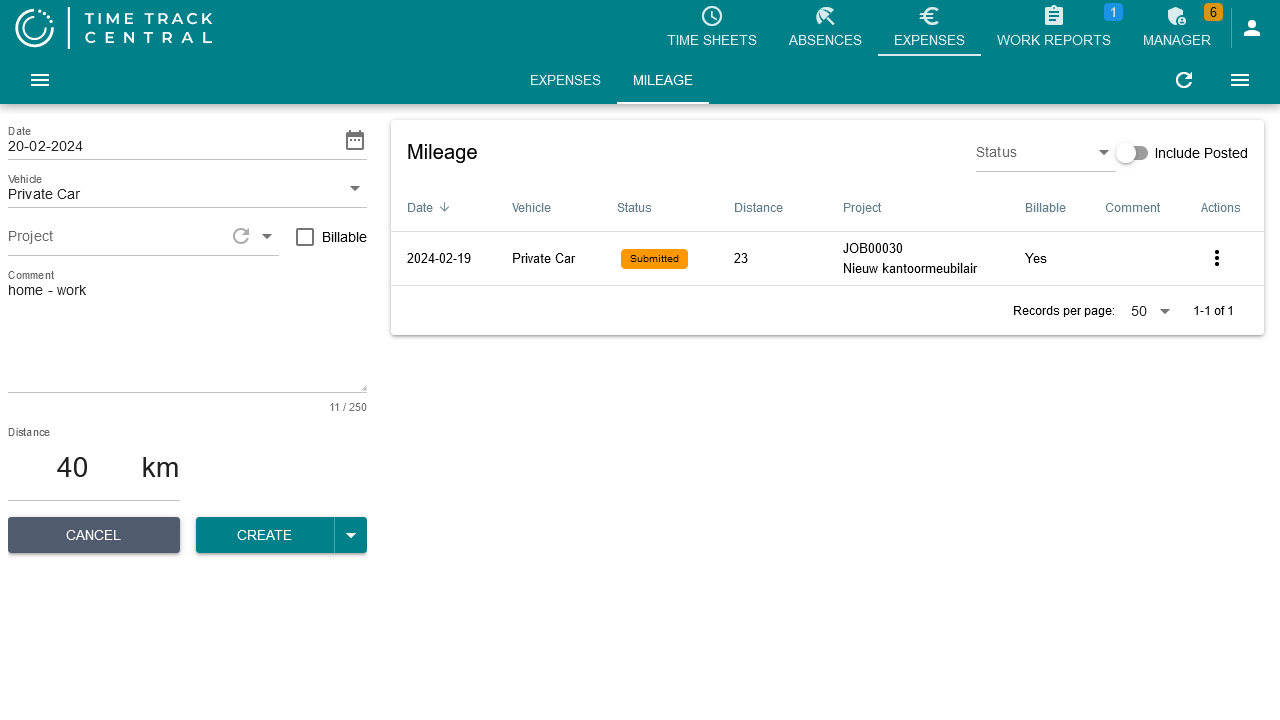
On the Mileage sub-tab, the entry panel asks for Date, Vehicle (see BC: Vehicles/Mileage), Project + Billable, Comment, and Distance (in the unit configured for you — km or miles). Ticking Multiple in the date picker turns it into a multi-select calendar, so you can log the same recurring trip (e.g. a commute) across several days in one go instead of creating an entry per day.
Managing claims
Both sub-tabs list your claims with filters for Status and an Include posted toggle (posted/paid claims are hidden by default). Each row's three-dot menu lets you:
- Submit (if open or rejected) or Reopen (once submitted, as long as it isn't posted yet).
- Remove (open or rejected claims only).
- View Attachments.
The summary panel on the right shows a year selector, a running total per category, and a Submit all button to submit every open claim for that year in one action.
Approving or rejecting a submitted claim is done in Business Central, not in the web app — see BC: Expenses.