
English
Screen division
Every tab uses the same four-part layout:
- Navigation — move between weeks, or jump to a specific year, month, or day. Hidden by default; press the hamburger icon (below the profile icon) to reveal it.
- Smart editor — where you enter a line: pick the project, task, and hour type, then fill in the details.
- Details screen — lists the lines you've entered. Click a line to load it back into the smart editor, or use its three-dot menu for actions like submit, approve, or reject.
- Summary/Totals — totals for the period, and where you submit hours or absences for approval.
Use the arrow buttons to open and close the smart editor and summary section.
Labels
On each time sheet line you'll see small colored badges. Each has a tooltip with more detail — hover over it to see it. Most are one-off attribute badges that only appear when they apply to that line:
- Red — a non-default hour type has been used.
- Deep orange (V) — a work variant has been selected.
- Teal (L) — a customer location has been charged.
- Purple (C) — the line has comments.
- Green (Wr) — the line is linked to a work report.
Separately, every line always has one status badge, colored by state (blue = open, orange = submitted, green = approved, red = rejected) — the same four colors as some of the attribute badges above, so read the letters, not just the color:
- Ho / Hs / Ha / Hr — hour line: Open, Submitted, Approved, Rejected.
- Ao / As / Aa / Ar — same states, for an absence line.
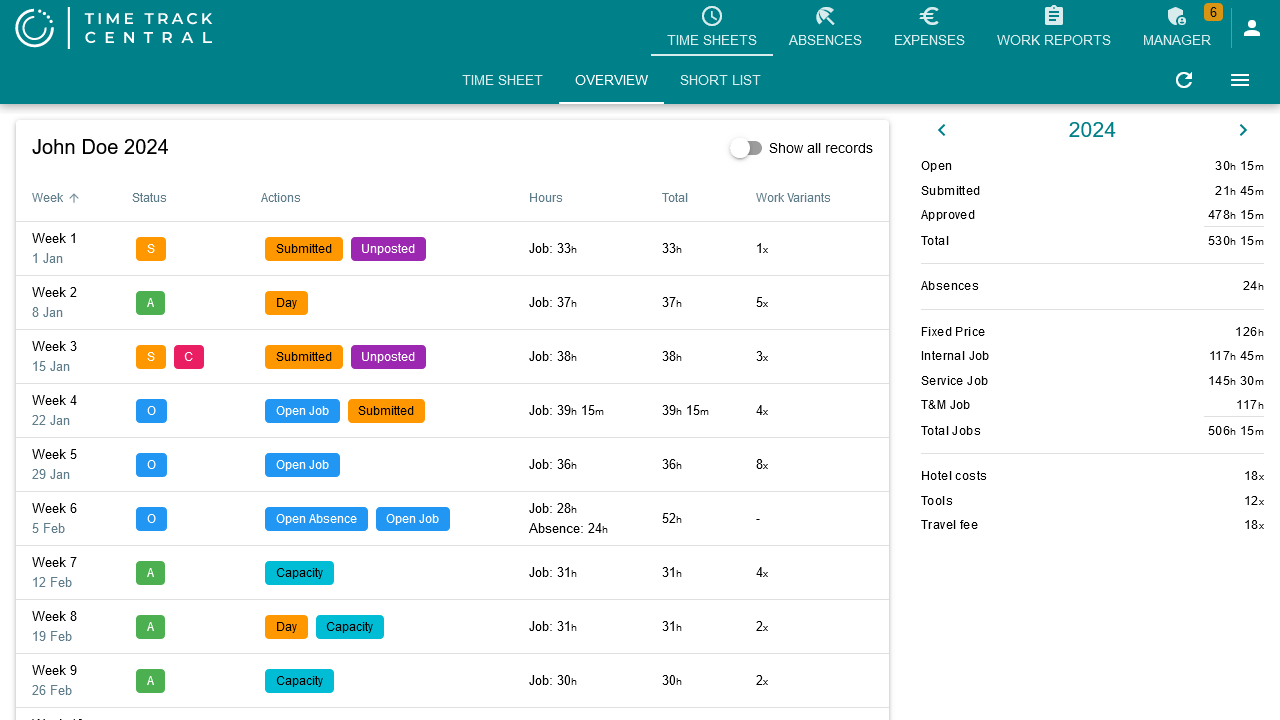
On the Manager tab's Week and Query tables, a different single-letter code summarizes the status of an employee's whole time sheet for the week: E Empty, O Open, S Submitted, A Approved, R Rejected, L Locked, M Muted (mail notifications off), C has comments — see Management.
Expense and mileage claims use plain-word status chips instead (Open, Submitted, Approved, Rejected) in the same blue/orange/green/red colors, and turn pink once an approved claim has been posted — see Expense Claims.