English
Management
The Manager tab is only visible to team or global admins (global admins see every team; team admins only their own). It has three or four sub-tabs depending on your role: Week, Query, Payroll (global admins only), and Capacity (see Capacity Management).
Week
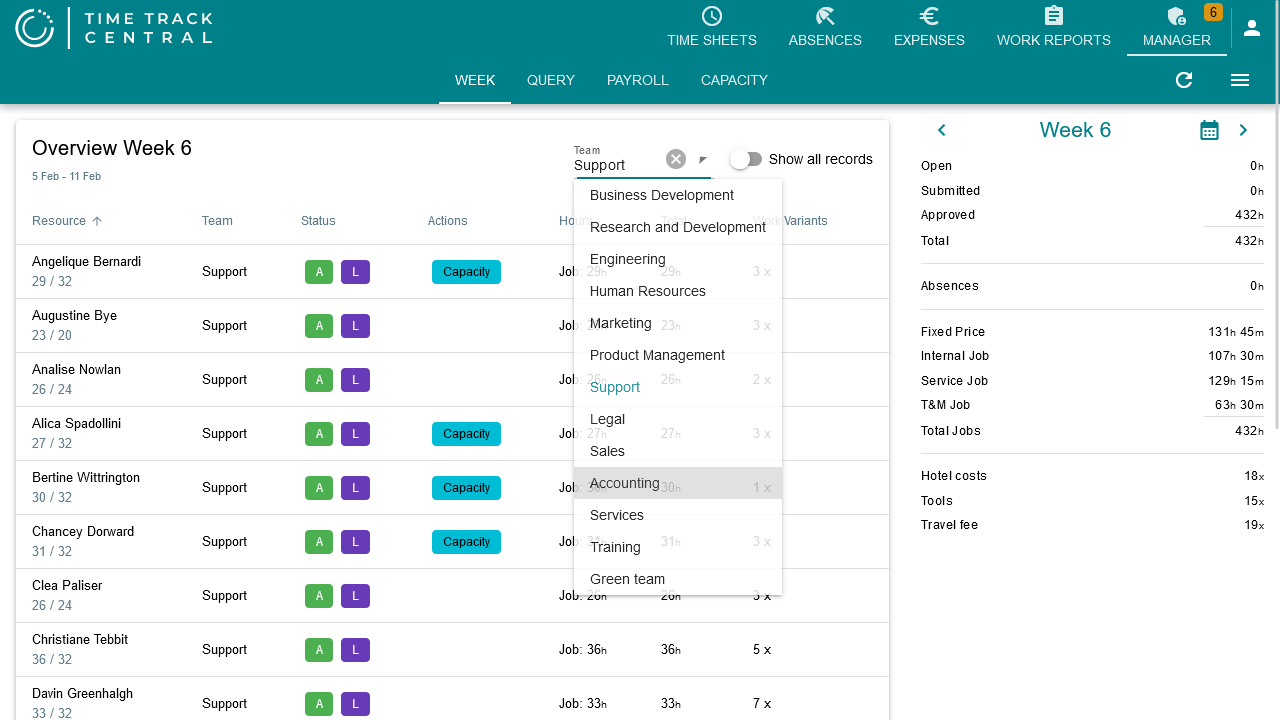
This is the default landing page: one row per employee for the selected week, with an employee search, a Team filter (global admins only), and a Show all logbook lines toggle (off by default, which hides employees with a fully empty week). Each row shows:
- A single-letter status chip summarizing the whole time sheet: E Empty, O Open, S Submitted, A Approved, R Rejected, plus L Locked, M Muted (mail notifications off), C has comments.
- One or more detail chips explaining what needs attention: Open Project / Open Absence (not yet submitted by the employee), Submitted, Day (unposted day codes), Unposted, Rejected, or Capacity (worked less than contracted).
- Hours booked on projects vs. absences, the total, and how many work variants were used.
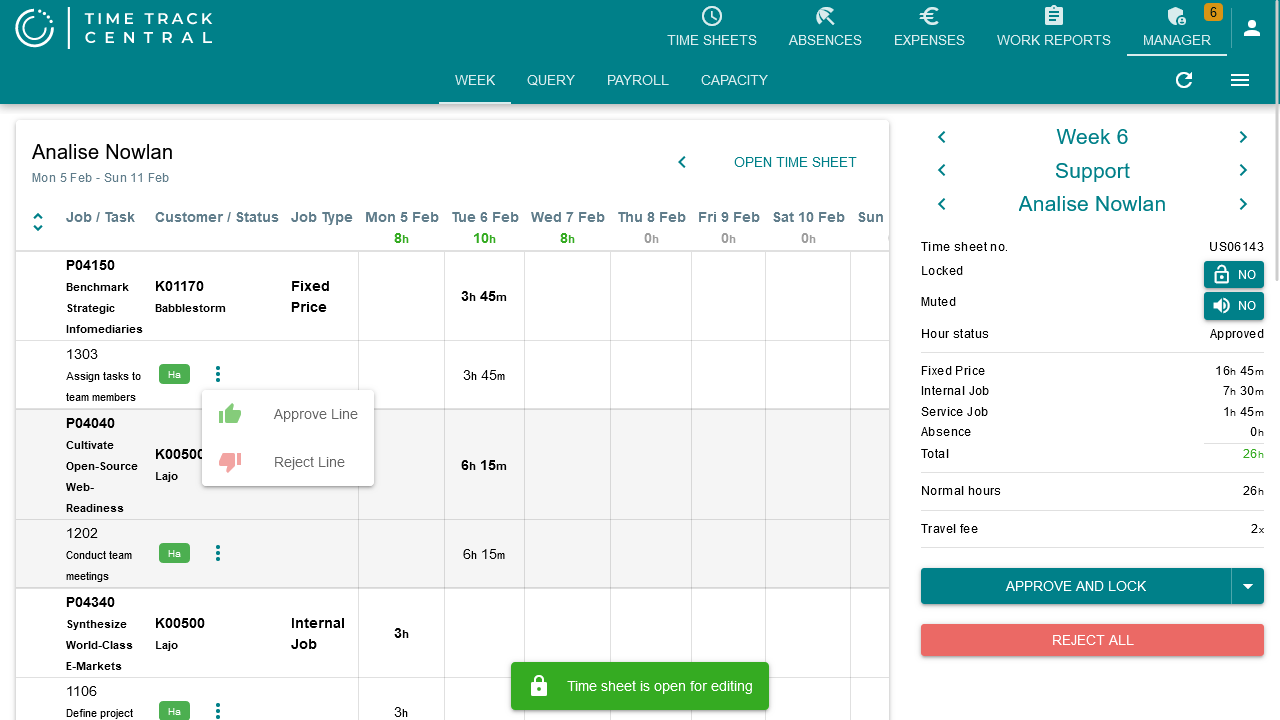
Click a row to open that employee's detail for the week: a read-only breakdown by project/task/day (with the same day-by-day layout as the Time Sheet), a link to open the employee's actual editable time sheet, and a comments button if any exist. From the three-dot menu on a line here you can Approve line / Reject line for project hours, and Approve / Reject for absence lines — this is where a manager acts on submitted hours, rather than on the Week table itself. The summary panel on the right totals open/submitted/rejected/approved hours for the week, broken down by project type and work variant, and lets you switch between weeks, teams, and employees without going back to the list.
Query
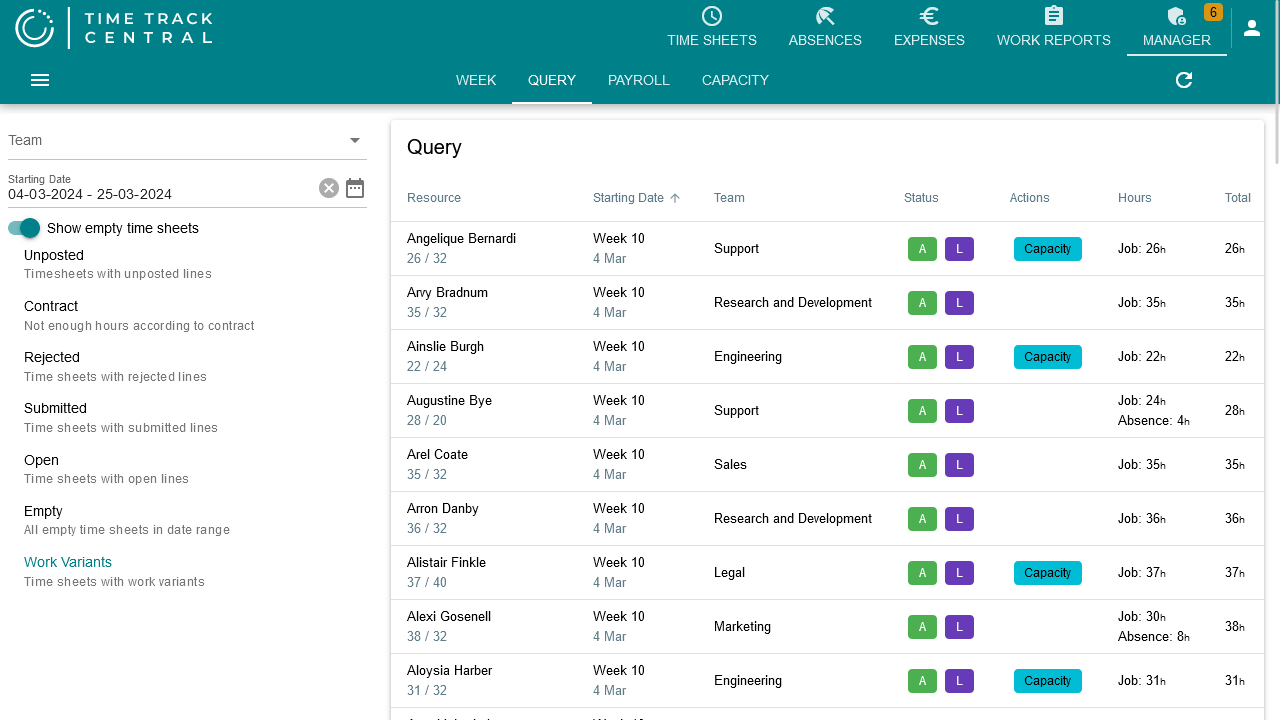
Query is the Week view stretched across weeks and teams instead of one week at a time — useful for catching things that scrolled out of the current week's view. It opens on Unposted hours from the last 7 weeks (excluding the current one) by default; the other quick filters in the left panel — Capacity, Rejected, Submitted, Open, Empty, Work Variants — just swap that preset. You can still narrow further with the Team filter, a manual date range, and a Show empty time sheets toggle. The table and row actions are identical to Week.
Payroll
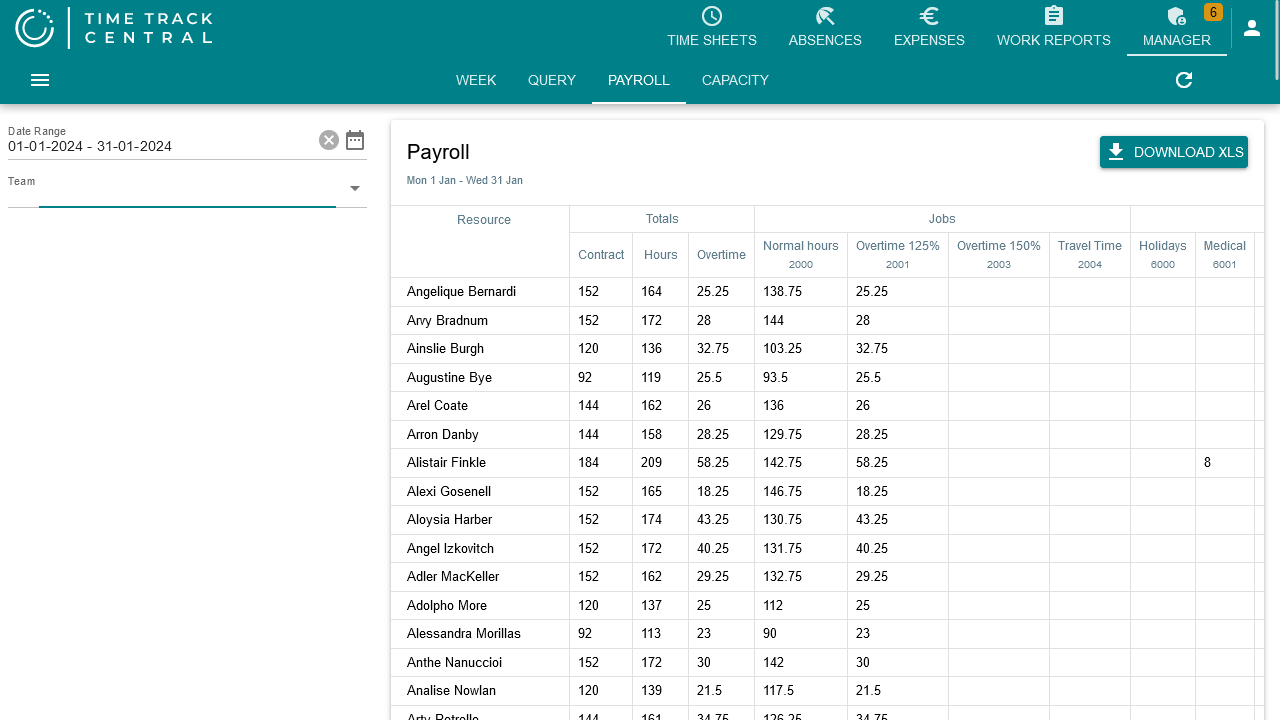
Global-admin only. Pick a Team and a date range (defaults to last month) and get a matrix of every employee against the payroll codes that apply to them — contract hours, worked hours, overtime, then a column per project-hour type, absence cause, day code, and work variant that was actually used in that range. Use Download to export it to Excel for handing off to payroll processing. The exported file's layout can be customized in BC — see Payroll Codes: Payroll Export layout.