English
Capacity management
Capacity is used to control hours (hours expected to be worked) and to calculate free hours when part-time. What a given employee is expected to work each day comes from a work-hour template assigned to their resource — configured by an admin in Business Central, see BC: Work-Hour Templates and BC: Resource Settings.
Capacity (Manager tab)
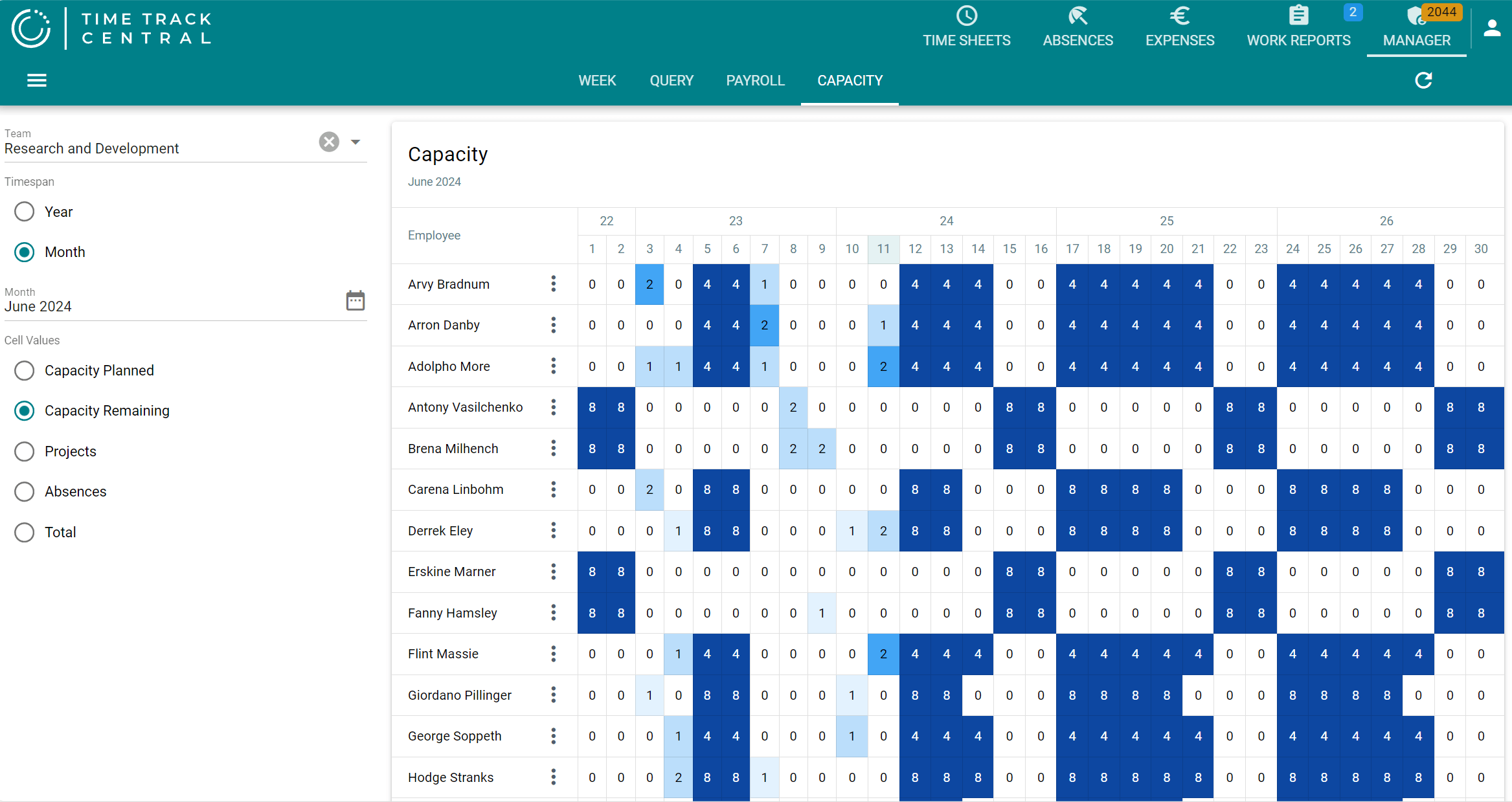
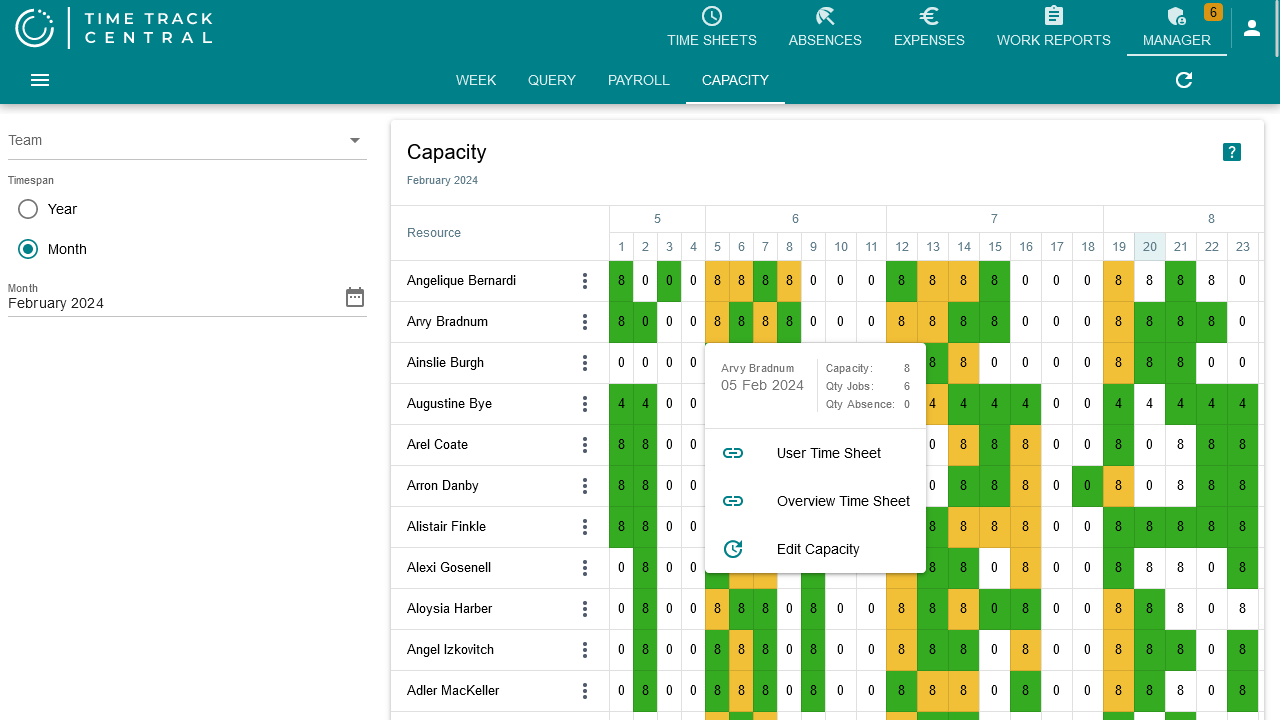
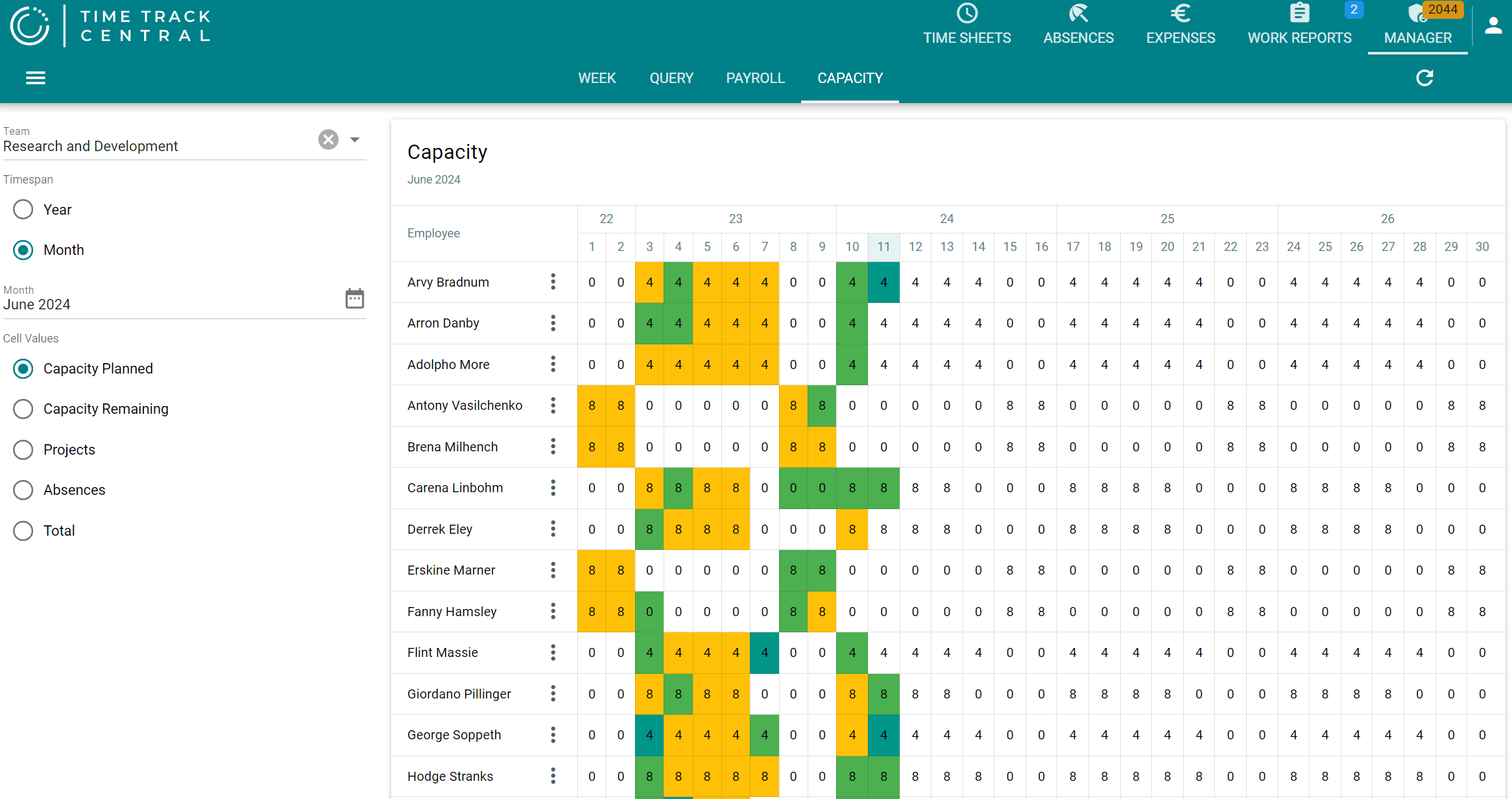
Team or global admins get a Capacity sub-tab under Manager, showing a grid of employees against days, either for a whole year or one month at a time (Timespan option). The Cell Values option switches what the grid displays per day: Capacity Planned, Capacity Remaining, Projects (hours booked), Absences, or Total.
Click a cell to jump straight to that employee's time sheet for that day. Each employee row also has an Edit Capacity action that lets you select multiple employees and a date range at once, and either apply a Work-Hour Template to all of them or type per-weekday (plus a separate Holiday) override values directly — a quicker alternative to editing each resource's template in BC for a temporary or one-off change.
The same grid, month view, with Capacity Planned selected under Cell Values:
...and with Capacity Remaining selected instead — same data, different lens: