
English
Date Expression Tester
A single-page utility for trying out Business Central date formulas — the same <CW>, <-1M+CM>-style expressions you type into date-formula fields all over Business Central — without having to enter one into a real field and check the result. No setup and no license are required; install the extension and open the page.
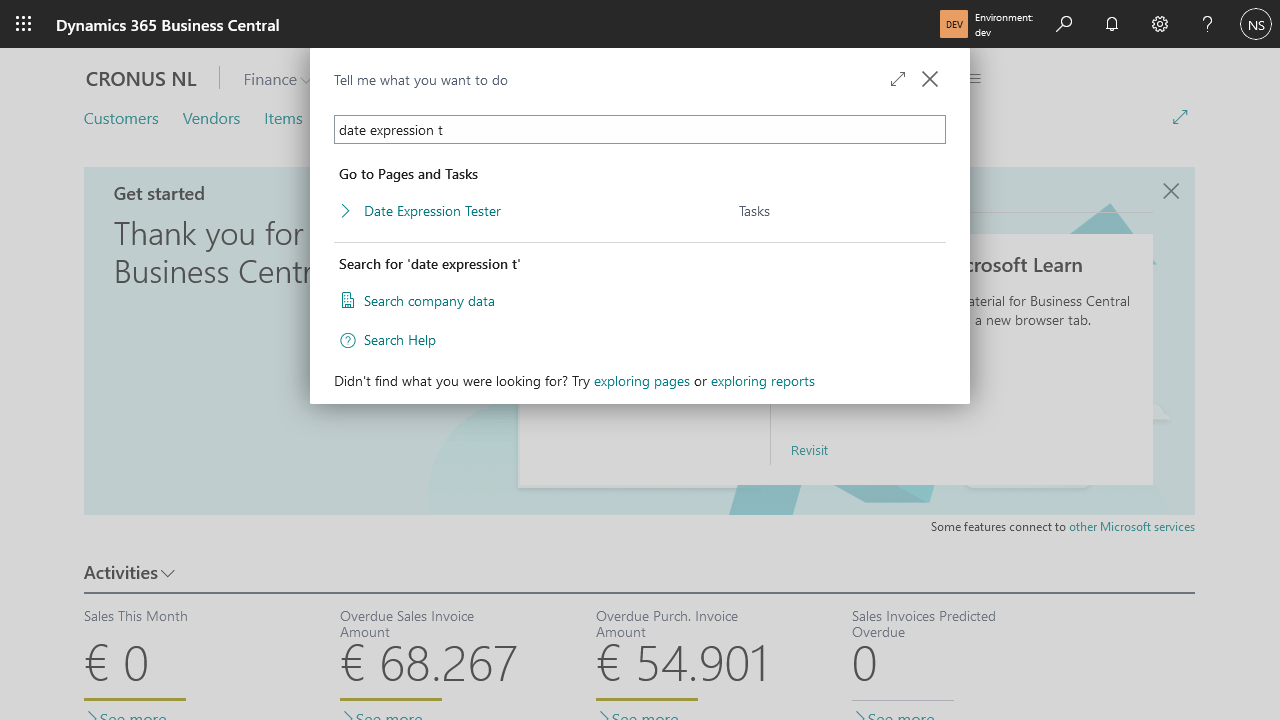
Open the tool
- Search Business Central for Date Expression Tester (or calcdate / formula).
- Business Central opens it under Tasks.
Test an expression
Type a formula into Date Expression. On first open this defaults to
<CW>(end of the current week).Optionally change Reference Date — the date the formula is calculated against. It defaults to today, but set it to any date to see what the formula would have produced (or will produce) on that day.
Leave the field.
Expected result: Calculated Date updates with the result. If you need the day/week/year breakdown Business Central's
Date2DWY()function would return for that result, expand Show more to reveal it.
Compare formulas at a glance
The Examples list on the page shows common formulas calculated against the same Reference Date you set above, so you can compare several at once instead of testing them one at a time. Quarter (Q) and year (Y) always follow the calendar year (Jan-Dec), not your company's configured fiscal year.
| Expression | Description |
|---|---|
<WD4> | The next 4th day of a week (Thursday) |
<-WD2> | The previous 2nd day of a week (Tuesday) |
<-CW> | Start of this week (Monday) |
<CW> | End of this week (Sunday) |
<0D> | Same as the reference date (e.g. due upon receipt) |
<10D> | 10 days from today |
<-CM> | Start of current month |
<CM> | End of current month |
<D10> | The next 10th day of a month |
<-D30> | Most recent day 30 (clips to month-end in February) |
<CM+10D> | Day 10 of the following month |
<2W> | 2 weeks from today |
<1M> | 1 month from today (clips on short months, e.g. Jan 31 -> Feb 28) |
<1M+CM> | End of next month |
<-CQ> | Start of current quarter |
<CQ> | End of current quarter |
<Q3> | Start of the next 3rd quarter |
<-CY+Q2> | Start of 2nd quarter this year |
<-CY> | Start of current year |
<CY> | End of current year |
<CY+1D> | Beginning of next year |
<1Y> | 1 year from today (clips Feb 29 -> Feb 28 in non-leap years) |
<-1Y> | 1 year ago from today |
Formula grammar reference
The Parameters list breaks down how a date formula is built, for whenever the examples above aren't quite the shape you need:
| Part | Made of |
|---|---|
| Date Expression | Up to three Subexpressions in a row, e.g. <-CY+Q2> |
| Subexpression | An optional Sign (+ or -) followed by a Term |
| Term | Number+Unit (10D), Unit alone (CW), or Prefix+Unit (CM) |
| Number | A positive integer |
| Unit | D (day), WD (weekday), W (week), M (month), Q (quarter), Y (year) |
| Prefix | C (current) |
A couple of things that trip people up when reading these:
- For the Prefix+Unit form (
C= current period), the sign picks which end of that period you land on:<CM>(no sign) gives the end of the current month,<-CM>gives its start. For a plain Number+Unit offset like<10D>or<2W>, the sign instead just picks direction — forward or back from the reference date. - Chaining Subexpressions applies them left to right against the result so far, not all against the original reference date —
<-CY+Q2>first jumps to the start of the current year, then moves forward to the start of the 2nd quarter from there. - The unit and prefix letters shown above (
D,WD,W,M,Q,Y,C) are Business Central's own date-formula grammar, not this tool's — they automatically follow your Business Central language, even in languages this extension has no dedicated translation for. - The two navigation actions on the page — Use Date Formulas and System.CalcDate — link to Microsoft Learn's own reference if you need the full specification beyond what's summarized above.
Test a formula across a full year
Month lengths and leap days can make a formula behave inconsistently depending on which month you happen to test it against — <-D30> reliably lands on day 30 everywhere except February, where it clips to the month's last day instead. Test Across Year checks a formula against every month in one go instead of you having to change Reference Date twelve times by hand.
Type a formula into Date Expression.
Select Test Across Year in the ribbon.
If you see the message "Enter a date expression first.", go back to step 1 — the field was empty or blank.
Review the Test Across Year list. Business Central ran your formula against the last day of every month of a leap year (2024, deliberately chosen to include a February 29th) and shows the reference date, the result date, and the result's day-of-month for each of the 12 rows.
Expected result: Rows are highlighted when their day-of-month doesn't match the majority of the other rows, flagging month-length or leap-day inconsistencies worth a second look. No highlighted rows means the formula lands on a consistent relative day all year round.
Close the page to return to Date Expression Tester.