
English
Event Tables
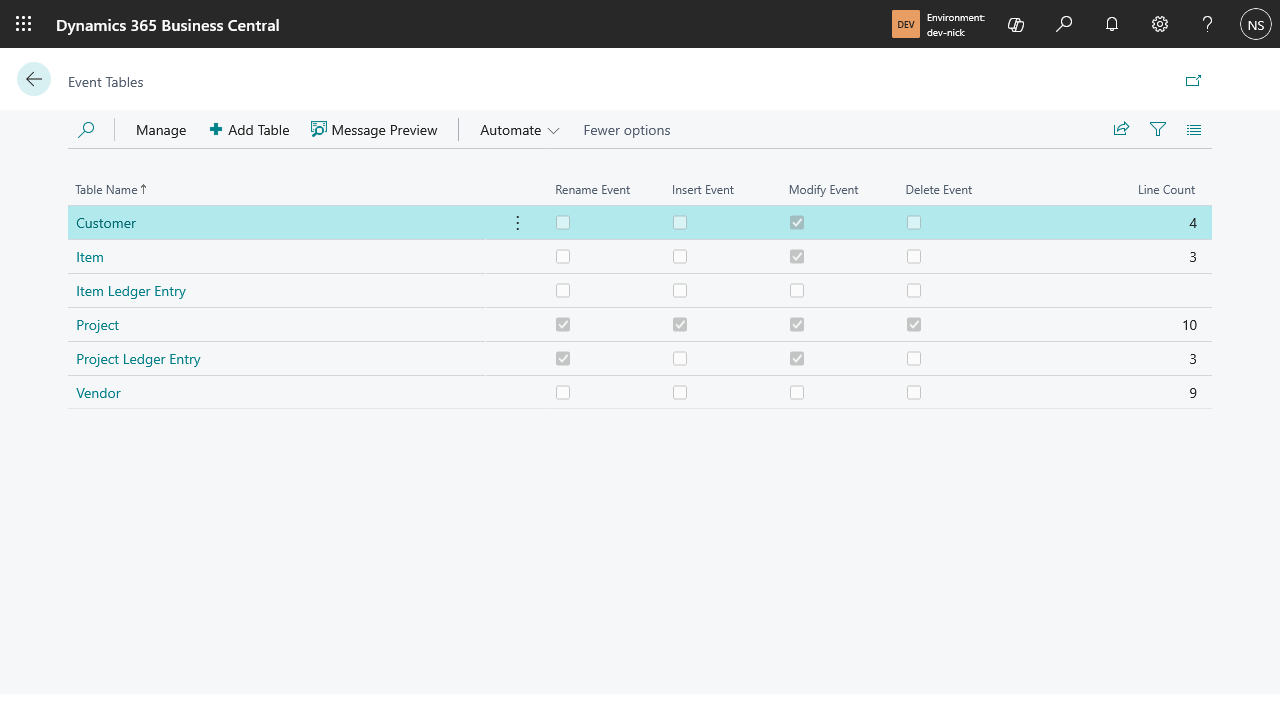
Event Tables is where you pick which Business Central tables publish events, which fields go into each event's JSON payload, and which event types actually fire. Open it from Event Bridge Setup's Event Tables action, or search Business Central for Event Tables.
Add a table
On Event Tables, choose Add Table.
Search for the table you want to publish events for (e.g. "Customer", "Sales Header") and select it — double-click a row, or check several and choose Add Table to add multiple at once.
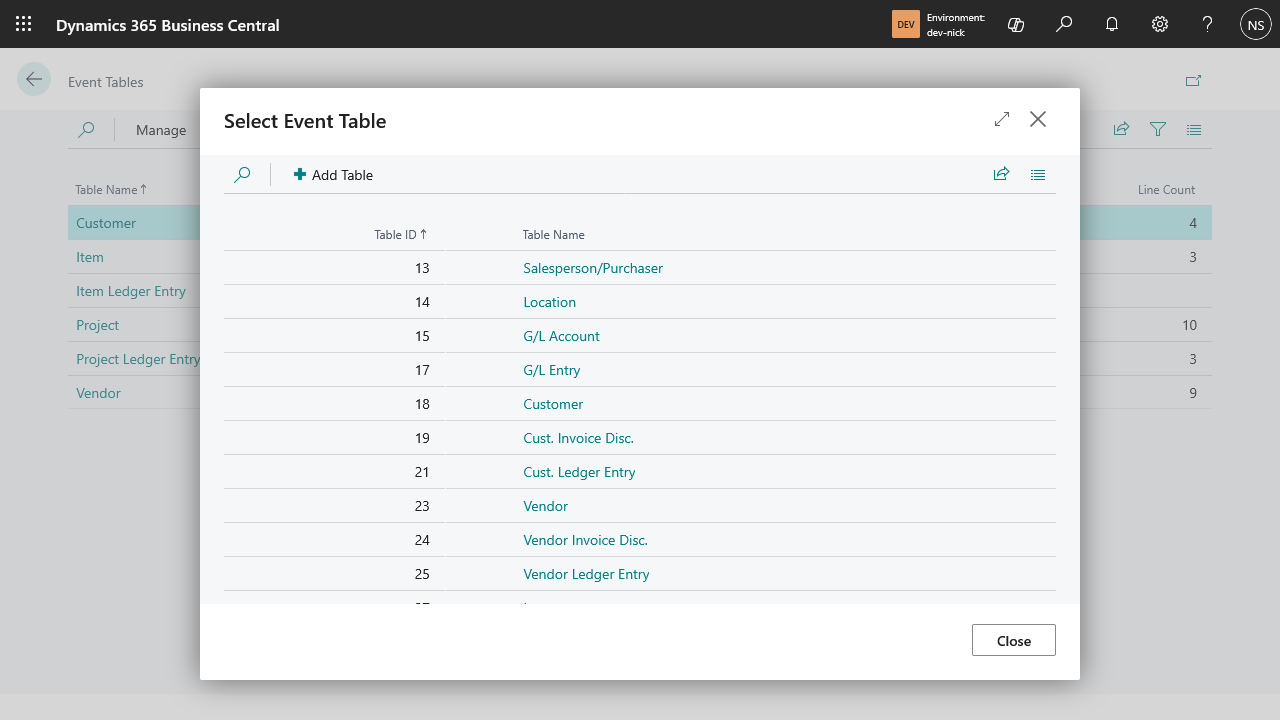
Expected result: the table appears in the list with 0 Active Fields and every event type unchecked. No events are sent yet — you still need to add fields and turn on at least one event type below.
Add fields to the payload
- Drill down on the table's name in Event Tables to open its Event Card.
- In the Fields part, choose Add Field.
- Select the fields to include — the list shows each field's number, name, caption, type, whether it's part of the primary key, and its relation table if it has one. Primary key fields and FlowFields are visually highlighted so you can spot them at a glance. Choose Add Field to add your selection.
Each added field gets a Key Name — the property name it appears under in the JSON payload — generated automatically from the field's caption (letters, digits, underscore, and hyphen only). Rename it if you want a different JSON key; names must stay unique within that table's event and can only use those same characters.
A FlowField added this way is also automatically marked Ignore For Changes, since recalculating one just to check for a change is expensive — see Filter which changes get published for why, and when you'd want to turn it back off.
Add related fields
Some fields point at another table's primary key (visible as a Relation Table Name in the field picker) — for those, you can pull in fields from the related record too, not just the key itself.
On a field that has a relation, choose Add Related Field.
Pick fields from the related table the same way as adding fields above.
Expected result: the related fields appear indented underneath their parent field in the list, and nest under that field's key in the JSON payload — e.g. fields added under a "Sell-to Customer No." relation appear nested under that field's key, not flattened alongside it. Check the exact shape with Message Preview.
Related fields are looked up live, by matching the parent field's current value against the related table's primary key at the moment the event fires — they aren't stored redundantly. If no matching record exists at that moment, the nested key is simply left out of the payload rather than sent empty.
A related field is never part of whether a Modify or Rename event fires in the first place — it lives on a different table than the one being watched for changes, so there's nothing there to compare. Its Ignore For Changes (see below) is checked automatically and locked — you can't uncheck it, unlike on a first-level field. Related fields exist purely to make the payload more useful once an event fires for some other reason, not to trigger one themselves.
Turn on event types
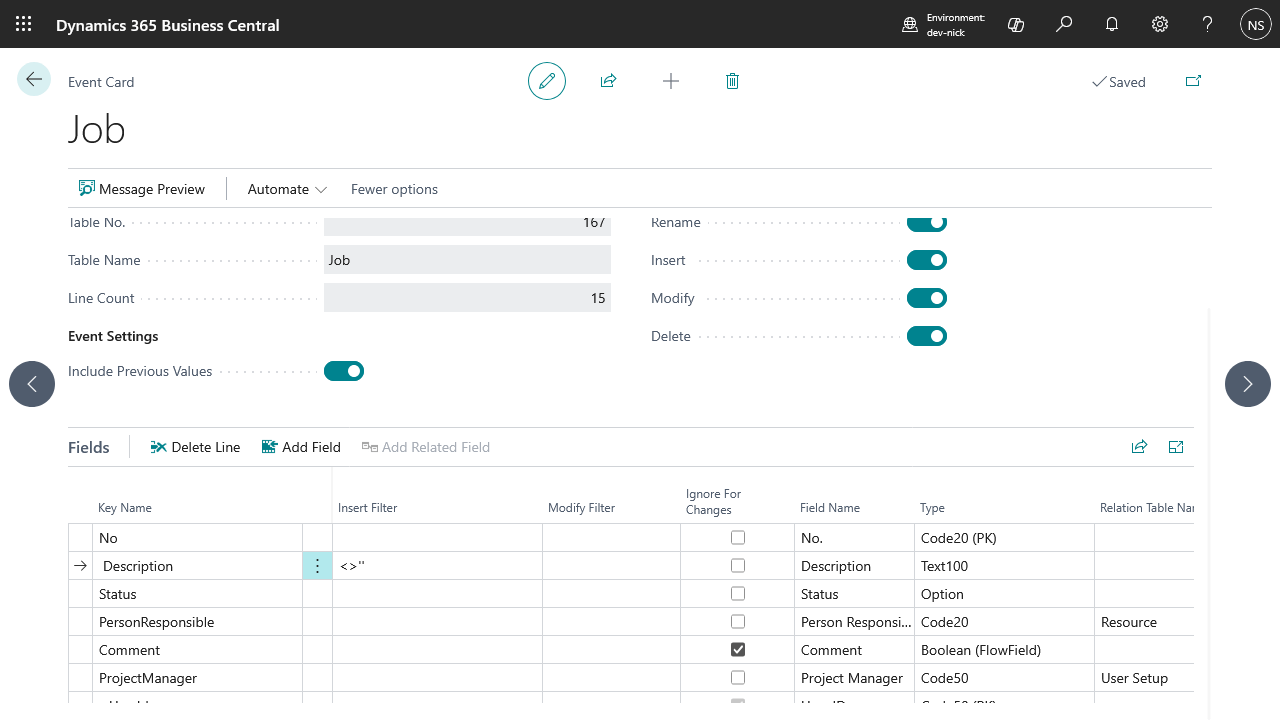
In the Event Card's Event Subscriptions group, turn on any combination of:
- Insert — a new record was created.
- Modify — an existing record changed.
- Rename — a record's primary key changed.
- Delete — a record was deleted.
You need at least one field added before any of these take effect. If fields exist but no event type is turned on, Business Central shows a reminder notification right on the card. Conversely, removing every field from a table automatically turns all four event types back off.
Include Previous Values (only relevant when Modify or Rename is on) controls whether those events include a before/after comparison of every field's value, or just the current (after) values on their own — comparison payloads are roughly double the size, so leave it off if your integration doesn't need to see what changed, only that it did.
Filter which changes get published
Insert Filter and Modify Filter on a field (first-level fields only — not related/detail fields, and not Media/MediaSet fields) restrict when that event type fires, using standard Business Central filter syntax (e.g. >100, A|B, <>'') evaluated against that field's value at the moment of the event.
If you set filters on more than one field, all of them must match — they combine as AND, not OR. A table with no filters set at all always fires its events, unfiltered.
Use Message Preview to check whether a specific record currently passes your filters (shown as ✅/❌) before relying on them in production.
Ignore For Changes works differently: instead of filtering on a field's value, it excludes the field from the comparison Business Central uses to decide whether a Modify or Rename event should fire at all. Check it for a field that changes on its own (a touch timestamp, a calculated status, anything not meaningful to your integration) and a change to that field alone no longer triggers the event — but the field's current value is still sent whenever some other, non-ignored field's change does trigger it. Insert and Delete events aren't affected, since neither compares against a previous value in the first place. It's also only editable on first-level fields — on a related field it's always checked and locked, since related fields are never part of that comparison to begin with.
That same comparison is why Add Field automatically checks Ignore For Changes for any FlowField you add (first-level fields only, not related/detail ones): recalculating a FlowField just to see whether it changed would happen on every save of the table, not only when an event actually ends up firing, and for a FlowField that sums or counts across many related records that's a real, repeated cost. It's still calculated normally — once — whenever some other field's change triggers an event and the payload is actually built. Uncheck it only if you specifically need a change to that FlowField alone to trigger an event; otherwise leave the default as-is.
Remove a table or field
- Delete a line in the Fields part to stop sending that field — any related fields nested under it are removed along with it.
- Delete a table from Event Tables to stop publishing events for it entirely, including all of its configured fields.