
English
Testing & Troubleshooting
Message Preview
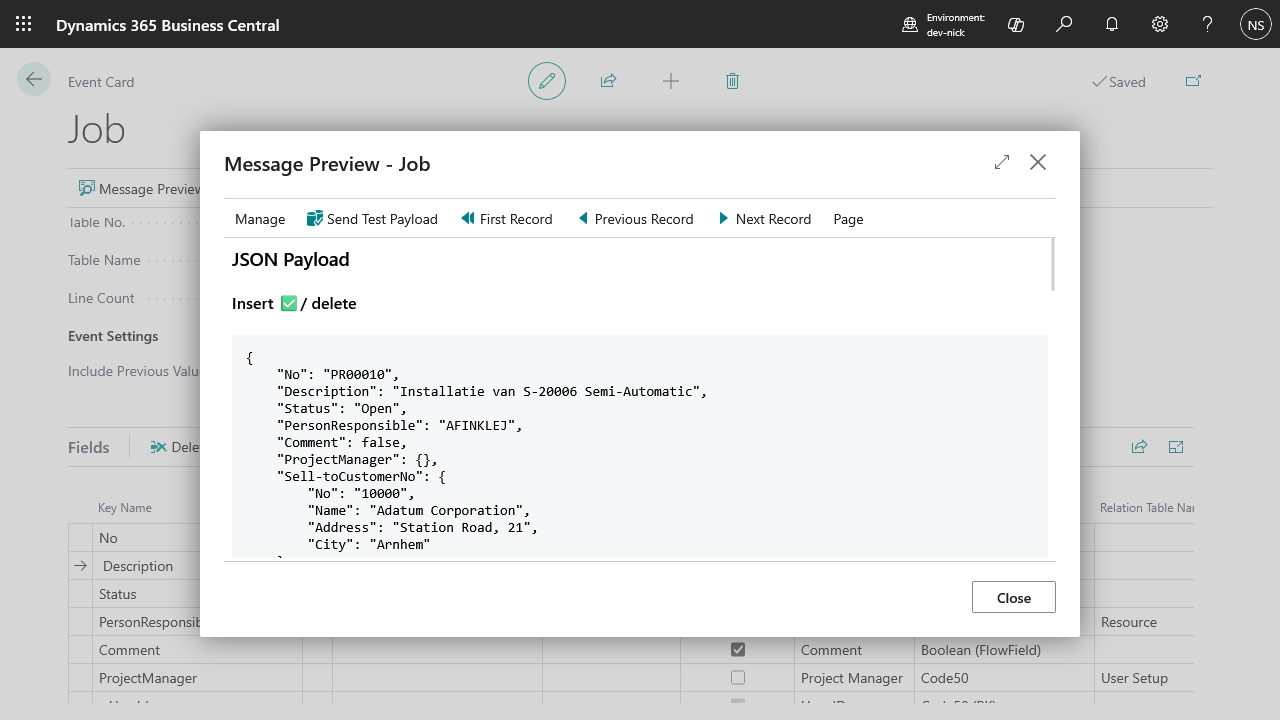
Available from both the Event Tables list and an individual Event Card, Message Preview shows exactly what would be sent for a real record — without actually sending anything.
It shows:
- The JSON payload, built from the fields you've registered.
- Whether the current record would currently pass the Insert and Modify filters (✅ pass, ❌ fail, blank if no filter is set for that event type).
- The
before/aftercomparison, if Include Previous Values is on for that table. - Either the full RabbitMQ message envelope, or the same metadata shown as a Headers block, depending on the Endpoint Type configured on Setup — see Headers & properties below for what that metadata actually is, and where it ends up on the wire for each endpoint.
- An Estimated Message Size, in bytes or KB — built from the actual wire body for your configured Endpoint Type, not a rough guess, so it already accounts for base64/XML overhead on Azure Queue Storage, the EventGridEvent wrapper on Azure Event Grid, and so on. If Include Previous Values is on, you get separate insert/delete and modify/rename estimates, since the
before/aftercomparison roughly doubles the size. Includes thex-pbo-*metadata either way, regardless of whether it ends up in the body or as separate HTTP headers for your endpoint — but excludes standard transport headers likeContent-TypeandAuthorization. Compare it against Payload size limits before you rely on a table in production.
Send Test Payload here is different from the one on Setup: it queues the currently displayed record's actual payload for real delivery through the same Event Queue a captured event would use, so you can confirm delivery end to end — not just shape — without waiting for a real change. It's always sent as an insert event and always goes out regardless of whether the table has Insert Event turned on or whether the record currently passes its Insert Filter — the ✅/❌ shown above is informational only and doesn't gate this button. Check the Event Queue afterward for the delivery result.
Use the First Record / Previous Record / Next Record actions to page through actual records in the underlying table and see how the payload changes from one record to the next — handy for confirming filters and related fields behave the way you expect across a range of real data, not just one example row.
Headers & properties
Every event carries a fixed set of x-pbo-* metadata generated by Business Central, independent of whatever fields you've registered on the table:
| Header | Value |
|---|---|
x-pbo-company-name | The company the event fired in. |
x-pbo-environment-name | The Business Central environment name. |
x-pbo-is-production / x-pbo-is-sandbox | Present (true) only for the environment type that actually matches — never both, and neither on some environment types. |
x-pbo-company-badge | The company's Custom System Indicator Text, if one is set — omitted otherwise. |
x-pbo-event-type | insert, modified, rename, or delete. |
x-pbo-table-name | The table's name, as registered on Event Tables. |
x-pbo-modified-at | The record's last-modified timestamp. |
x-pbo-tenant-id | The Business Central tenant ID. |
x-pbo-aad-tenant-id / x-pbo-aad-tenant-domain-name | The Entra ID tenant backing this environment. |
x-pbo-user-id / x-pbo-user-email / x-pbo-user-fullname | The acting user — only sent when Include User Data is on (see Setup → General), and the e-mail/full name ones only if that user actually has a value set for them. |
Where this metadata actually lands depends on the Endpoint Type — for three of them it's real HTTP request headers, for the other three it's a key inside the JSON body instead:
| Endpoint | Where this metadata lands |
|---|---|
| API endpoint, Azure Service Bus, Azure Event Hub | Literal HTTP request headers — never inside the JSON body. |
| RabbitMQ | Inside the message body, under properties.headers of the AMQP envelope — RabbitMQ's own concept of message properties/headers, not HTTP headers. |
| Azure Event Grid | Inside the message body, under data.headers of the EventGridEvent wrapper. |
| Azure Queue Storage | Inside the message body, under its own top-level headers object (alongside event_type, table_name, and payload). Only x-ms-version is added as a literal HTTP header. |
Message Preview always labels this metadata "Headers" (except for RabbitMQ, where it shows the full message envelope instead) regardless of which of the two categories above actually applies — for Azure Event Grid and Azure Queue Storage specifically, what the preview calls "Headers" is what ends up embedded in the request body on the wire, not sent as literal HTTP headers.
Send Test Payload
On Event Bridge Setup, Send Test Payload sends one dummy event (a fixed {"Test Message": "Hi!"} payload, event type insert, table name Test) straight to the configured endpoint, immediately and outside the queue. It's a quick way to confirm your endpoint URL and authorization are correct end to end, without needing any table registered yet.
Reading the error messages
When an event fails to send — immediately in the Send Test Payload dialog, or as an entry's Error Message in the Event Queue — the message is one of these:
- "HTTP requests are blocked by your environment settings." — Outbound HTTP calls aren't enabled for this extension yet. In the Send Test Payload dialog, this links directly to Extension Management, where you need to enable outbound HTTP for BC Event Bridge.
- "Failed to send event. Server responded with
<status>:<reason>." — The endpoint was reached, but rejected the request. The status code and reason phrase are your best lead — a401/403usually points at Authentication, a413at the event exceeding your endpoint's payload size limit, anything else at the receiving system's own logs. For OAuth 2.0, Business Central already retries once with a fresh token on a401before surfacing this, so a401here means the retry failed too — double-check the app registration itself, not just a stale cache. - "Unable to acquire an OAuth2 access token. Verify the token endpoint, client ID, client secret and scope..." — Business Central couldn't complete the client-credentials flow. Check those four fields against your app registration; see OAuth 2.0.
- "Unable to build a SAS authorization header. Verify the SAS key name and value..." — The Azure SAS Token key name or value on Setup is missing or wasn't saved.
- "Unable to build a Storage SAS request URL. Verify the SAS token..." — The Storage SAS Token on Setup is missing, wasn't saved, or has expired.
- "Unable to build an Event Grid SAS authorization header. Verify the access key..." — The Event Grid SAS Token access key on Setup is missing or wasn't saved.
- "Unable to find a valid endpoint setup." — A required field for your configured Endpoint Type is empty (RabbitMQ API URL; API Endpoint; Service Bus Namespace/Queue-Topic Name; Event Hub Namespace/Event Hub Name; Storage Account/Queue Name; or Event Grid Topic Endpoint). In the Send Test Payload dialog, this links to Event Bridge Setup.
Who sees these errors
A delivery failure for a real captured event doesn't interrupt or notify the user whose action triggered it — it's recorded silently on that entry in the Event Queue with status Error, and nowhere else inside Business Central. Nobody sees it unless they go looking.
If you're relying on Event Bridge for something operationally important, check the Event Queue regularly — or better, monitor delivery from the receiving side (RabbitMQ or your API endpoint's own logs) — rather than expecting failures to be reported back to you automatically.
Who can use these
Message Preview and Send Test Payload need the same Event Bridge Admin access required for Setup and Event Tables — see Licensing and access.